Free Safari edition: local tools need no upgrade. AI and Kliplet cloud sync are unavailable.
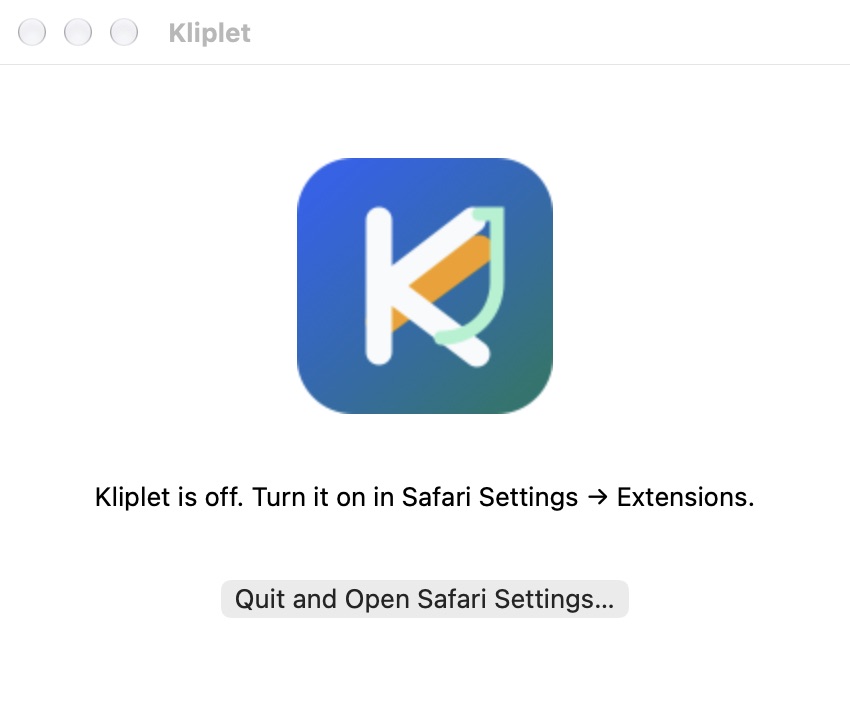
Enable Kliplet
- Open Kliplet and choose “Quit and Open Safari Settings…”.
- In Safari Settings, turn on Kliplet. Open a web page, choose Kliplet in the toolbar and allow access for that website.
Save a Markdown file
- Open settings from Kliplet’s popup, go to “Targets”, add a Markdown destination and choose “Save”.
- Open a page, choose the page or selected-text mode, select Markdown and save.
- Check the file in the folder you chose after saving.
Each Markdown save opens Safari’s Save dialog. Choose a folder and a new filename; existing files are kept. Maximum file size: 1 MiB.
If saving does not finish
Save cancelled. No file was written.
A file with that name already exists and was kept. Choose a different filename.
The save could not be confirmed. Check the chosen location. Close and reopen Kliplet before saving again to avoid a duplicate.
Add Notion as a destination in Kliplet. If Safari asks, allow Kliplet to access auth.kliplet.com. Choose the pages in Notion, then return to Kliplet and select a database.
If the connection test fails, open api.notion.com, click Kliplet in the Safari toolbar, and allow access for that site. Return to Kliplet and test the connection again.
Your data
On this device: clips, search, highlights, destinations, templates and settings are stored locally, including destination credentials. Existing AI and license records are preserved but unused. For Markdown, choose a folder and a new filename in the system Save dialog; this edition does not export PNG, backup or Privacy files.
Network use: clips go to the connected destinations you select. Safari stores extension settings locally without cross-device sync. This edition does not run AI, Kliplet cloud sync, checkout or license checks. Connected destinations and Notion authorization have separate data flows.